Organiser's guide
Everything the app does, with pictures. If you just want the rules of the game itself, read how to play football squares instead.
Creating a game
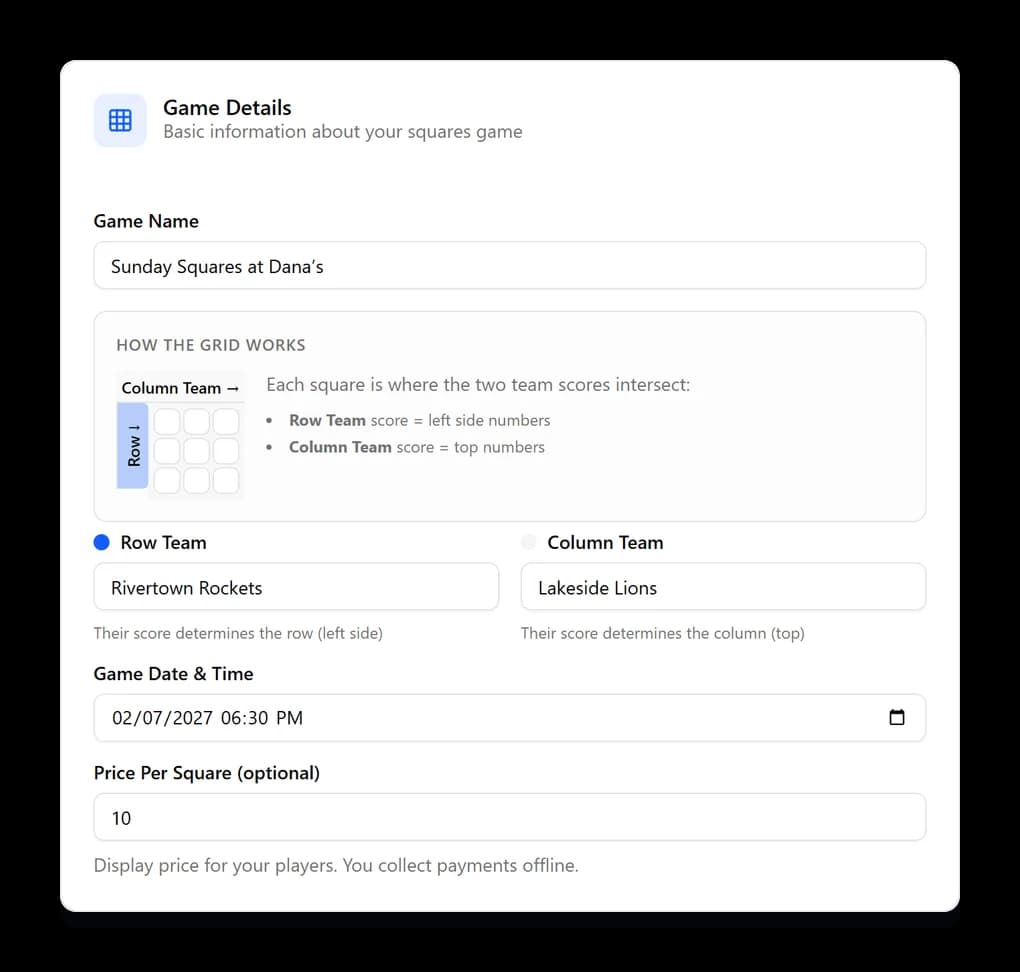
Name the two teams, set a price per square, and decide how the pot splits. Whichever team you put in the Row Team field has its score read down the left of the grid; the Column Team is read across the top.
- 1Go to Create Game and give the pool a name your group will recognise.
- 2Enter the two teams. The small diagram shows which one drives rows and which drives columns.
- 3Set the price per square. This is only displayed to players — you collect the money yourself.
- 4Set the payout split. It has to add up to 100%, and the running total tells you where you are.
- 5Pay the one-off activation fee. Until you do, the game is inactive and its link does nothing.
Choosing a grid size
A hundred squares is the classic game, but it only works if you can actually sell a hundred squares. For a smaller group, use the 25-square grid.
- 1100 squares (10x10) gives every row and column a single digit.
- 225 squares (5x5) gives every row and column two digits, so each square still maps to real scores.
- 3Turn on New Numbers Each Quarter to redraw between periods, so one lucky square cannot take the whole pot.
Sharing by link or QR code
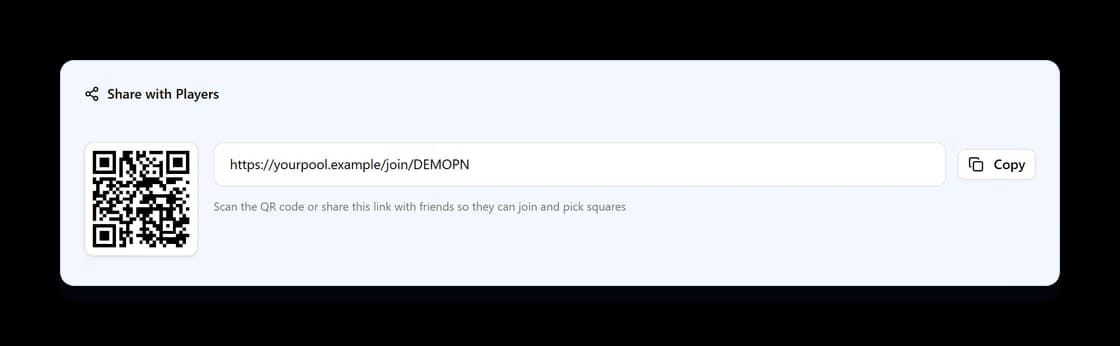
Every game gets its own link and a QR code for it. There is nothing to install and players do not need the code typed out — they scan it or tap the link.
- 1Open the game and find the Share with Players panel.
- 2Hit Copy to put the link on your clipboard, then paste it into your group chat.
- 3Or show the QR code on your screen and let people scan it from across the room.
- 4Anyone following the link signs in or creates an account, then picks their own squares.
Keeping a game private
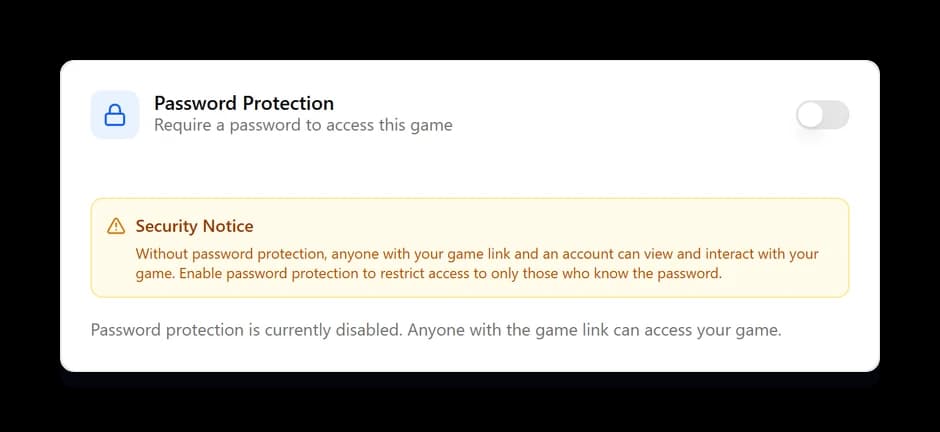
By default anyone holding the link can join. If your link might get forwarded further than you intended, put a password on it.
- 1Open the game, go to Settings, and turn on Password Protection.
- 2Set a password and tell your group what it is, separately from the link.
- 3Anyone joining from then on has to enter it before they can see the grid or claim anything.
- 4People who already joined stay in — turning it on does not lock out your existing players.
Releasing unpaid squares automatically
The usual way a pool stalls is someone claiming six squares and then going quiet. Rather than chasing them, set a deadline and let the squares free themselves.
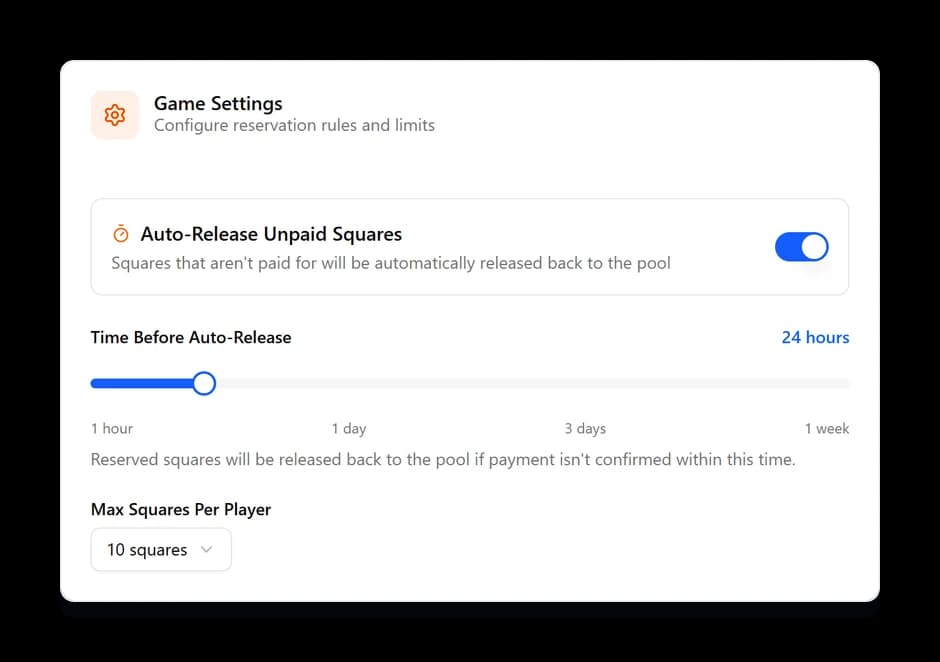
- 1When you create a game, leave Auto-Release Unpaid Squares switched on.
- 2Drag the slider to set how long someone has to pay — anywhere from one hour to a week. The default is 24 hours.
- 3A player claims squares, which go to Reserved and start the clock.
- 4You mark them paid before the clock runs out, and they are locked in for good.
- 5If nobody pays, the squares go back to Available automatically and anyone else can take them.
Capping how many squares one person takes
Without a cap, one enthusiastic player can buy half the board before anyone else has looked at it.
- 1Set Max Squares Per Player when you create the game. Ten is a sensible default for a hundred-square grid.
- 2Players see their own running count under the grid as they pick.
- 3The limit is enforced on the server, so it holds even if two people claim at the same moment.
Tracking who has paid
Money changes hands however your group already does it — cash, Venmo, a bank transfer. The app is only keeping the ledger.
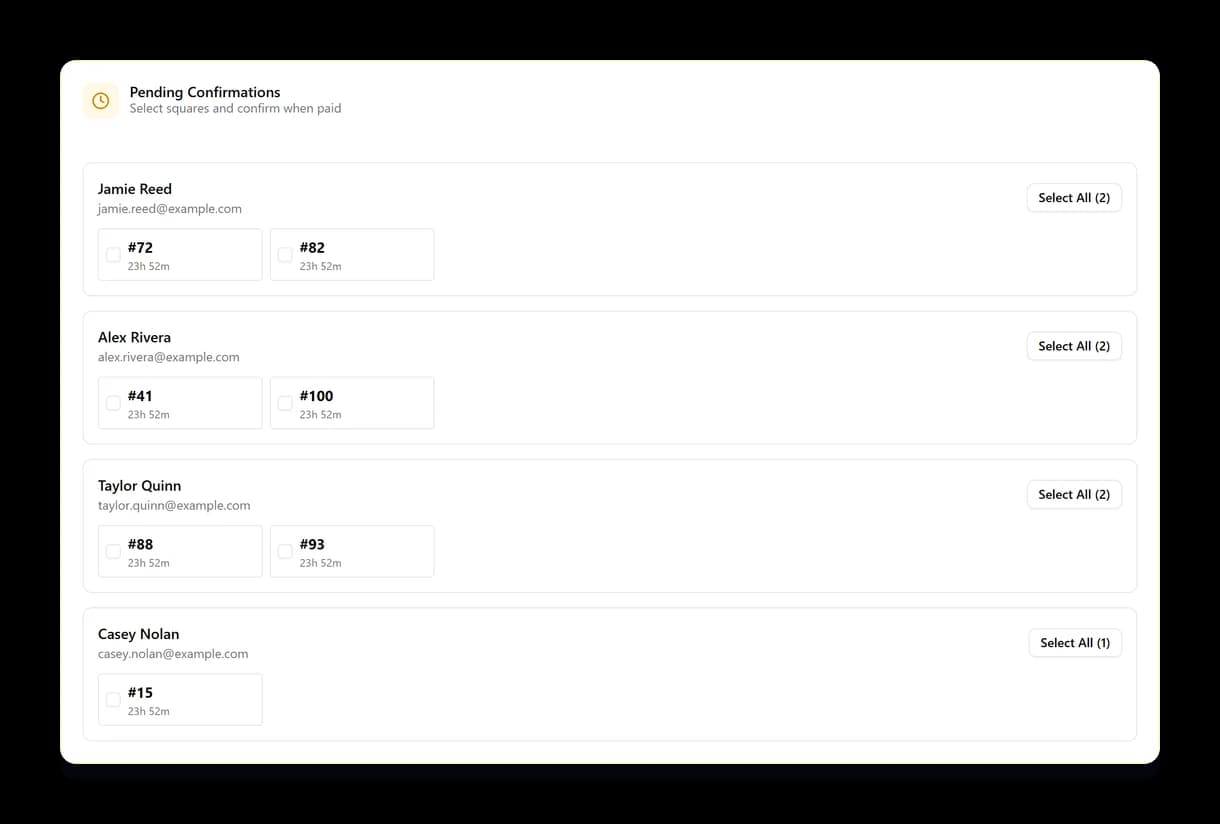
- 1Reserved squares appear in Pending Confirmations, grouped by player, with the time each has left.
- 2When someone pays you, tick their squares and confirm. Select All takes the whole player at once.
- 3Confirmed squares turn green and stop counting down.
- 4Got it wrong? Open Paid Squares and mark them unpaid again — it puts them back to reserved without losing the claim.
Chasing payment, and exporting the grid
Two buttons for the tedious parts of running a pool.
- 1Send Reminders emails everyone with unpaid squares — one message per person, not one per square.
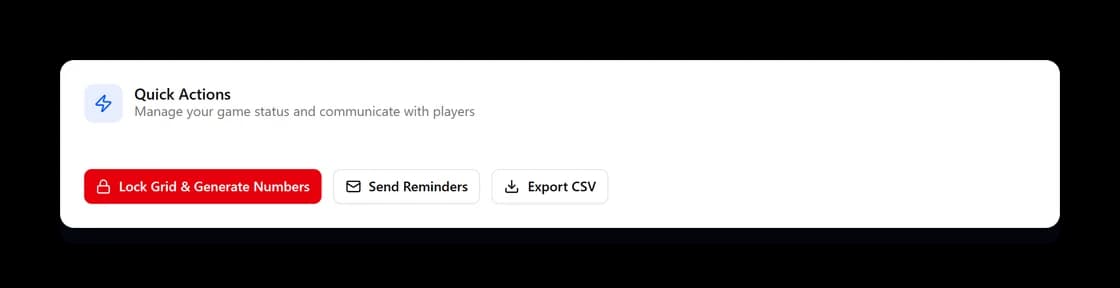
- 2Export CSV downloads the whole grid: every square, its digits, who owns it, what they owe and whether they have paid.
- 3The export opens in any spreadsheet, which is handy for settling up or just keeping a record.
Managing players
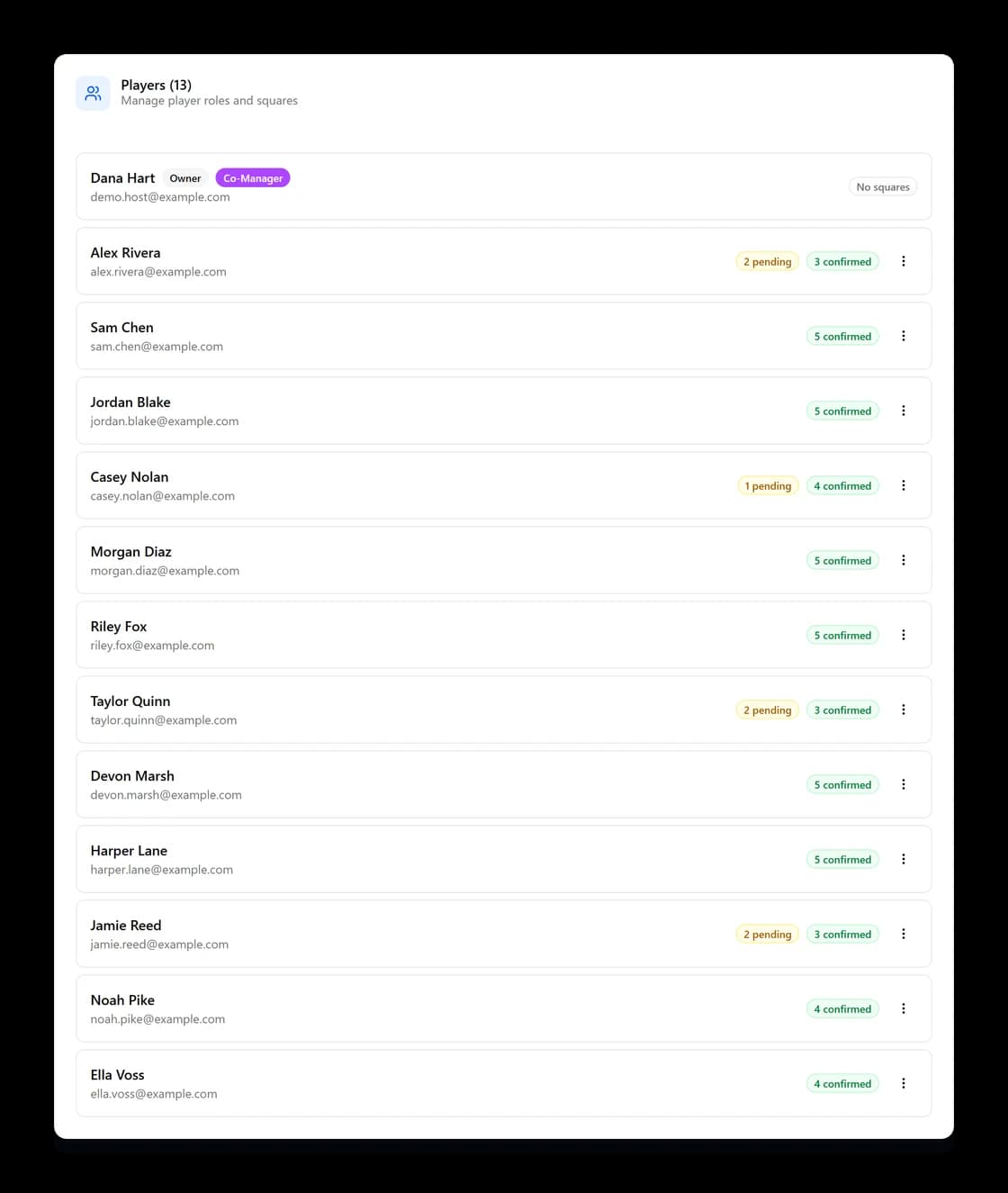
Every member of a pool is listed with what they hold, and what you can do about it.
- 1Release squares hands someone's unpaid squares back to the pool without removing them.
- 2Block stops a player claiming anything new while leaving what they already have.
- 3Remove takes them out of the game entirely and frees their squares.
- 4Co-Manager lets someone else help run it.
Locking the grid and drawing the numbers
This is the one step that has to happen at the right moment. Lock once the grid is as full as it is going to get — and not before.
- 1Hit Lock Grid & Generate Numbers in Quick Actions.
- 2The digits 0-9 are shuffled onto the rows, and again onto the columns.
- 3Players can no longer claim squares, and the board is final.
- 4The numbers appear along the top and down the left for everyone at once.
Entering scores and paying out
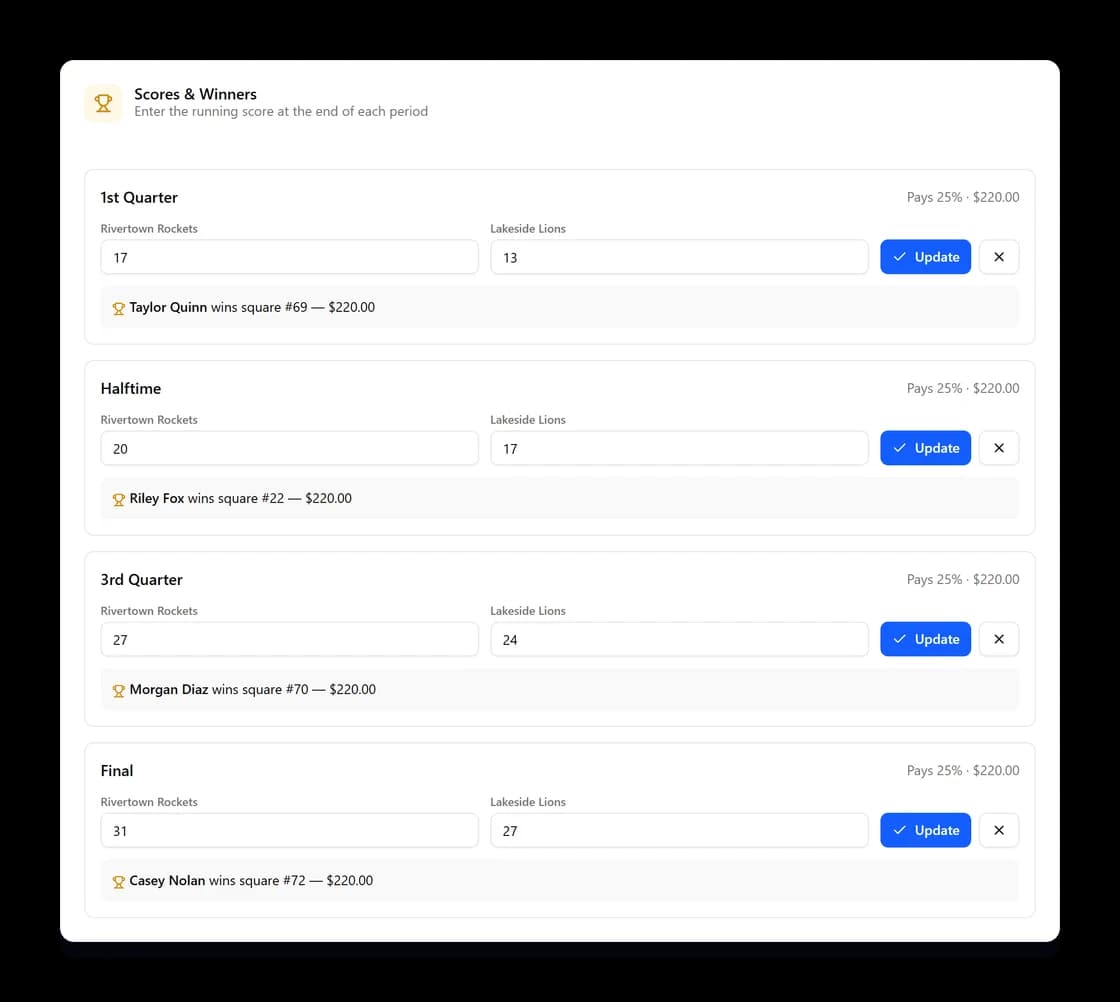
Type the running score at the end of each period. The winning square, who owns it and what they are owed are all worked out for you.
- 1Open Manage and find Scores & Winners.
- 2Enter both teams' scores at the end of a quarter and save.
- 3The app takes the last digit of each score, finds the square where that row and column meet, and records the winner.
- 4The winning square is highlighted on the grid with a badge, and the Winners panel shows the payout.
- 5Made a typo? Update the score or clear the period and enter it again.
Playing on a phone
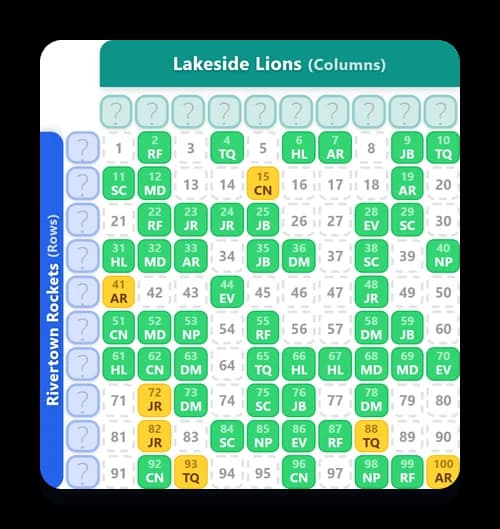
Most people will look at the grid on a phone, usually while the game is on. The whole board fits on screen without pinching or side-scrolling.
- 1Players tap squares to select, then confirm the lot in one go.
- 2Each square shows its owner's initials, so the board is readable at a glance.
- 3While a game is still filling, the grid updates on its own as other people claim.
Disclaimer: This platform is a game management tool only. We do not facilitate gambling. We do not collect or distribute any wager funds. Users are responsible for compliance with local laws.